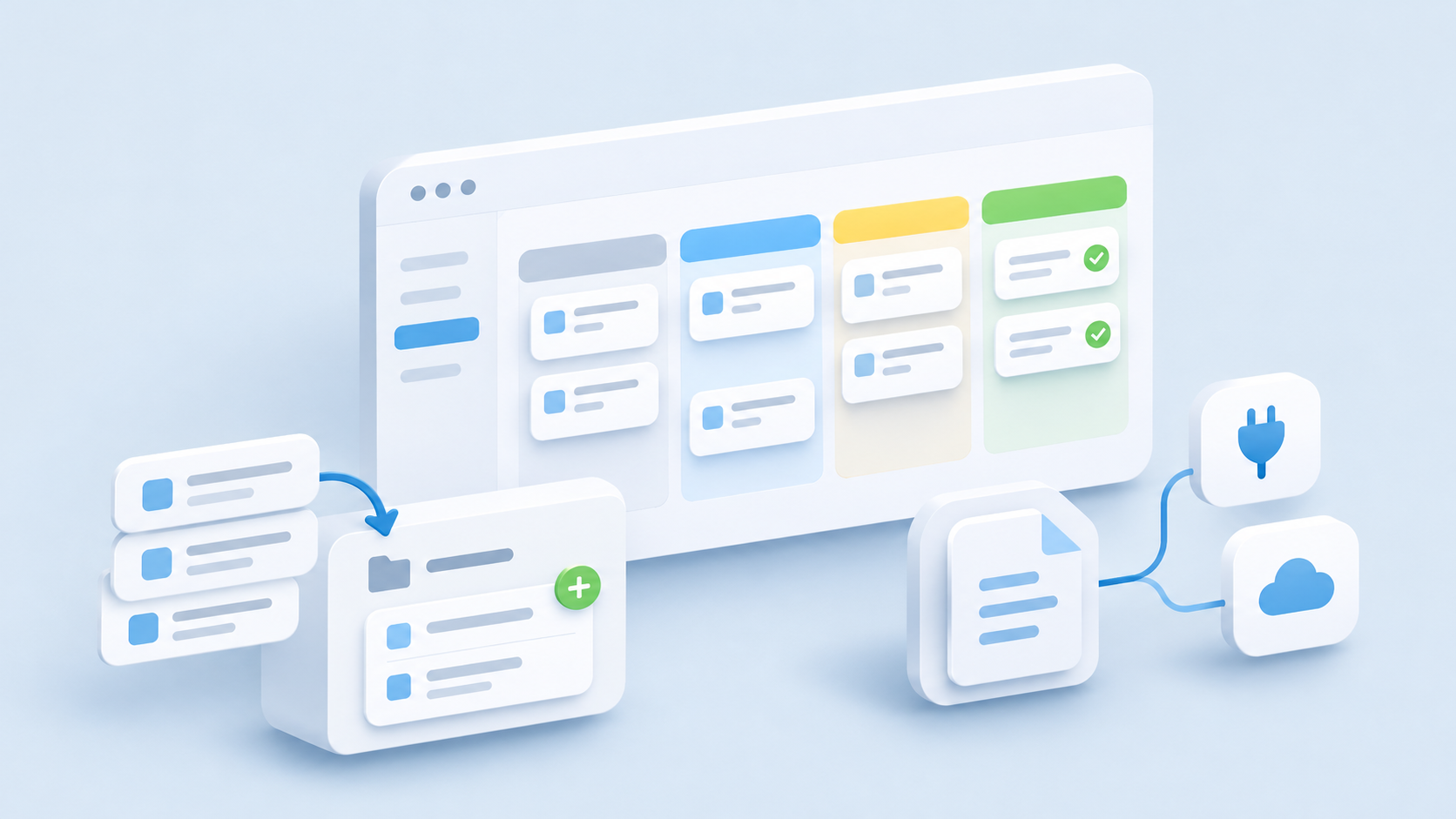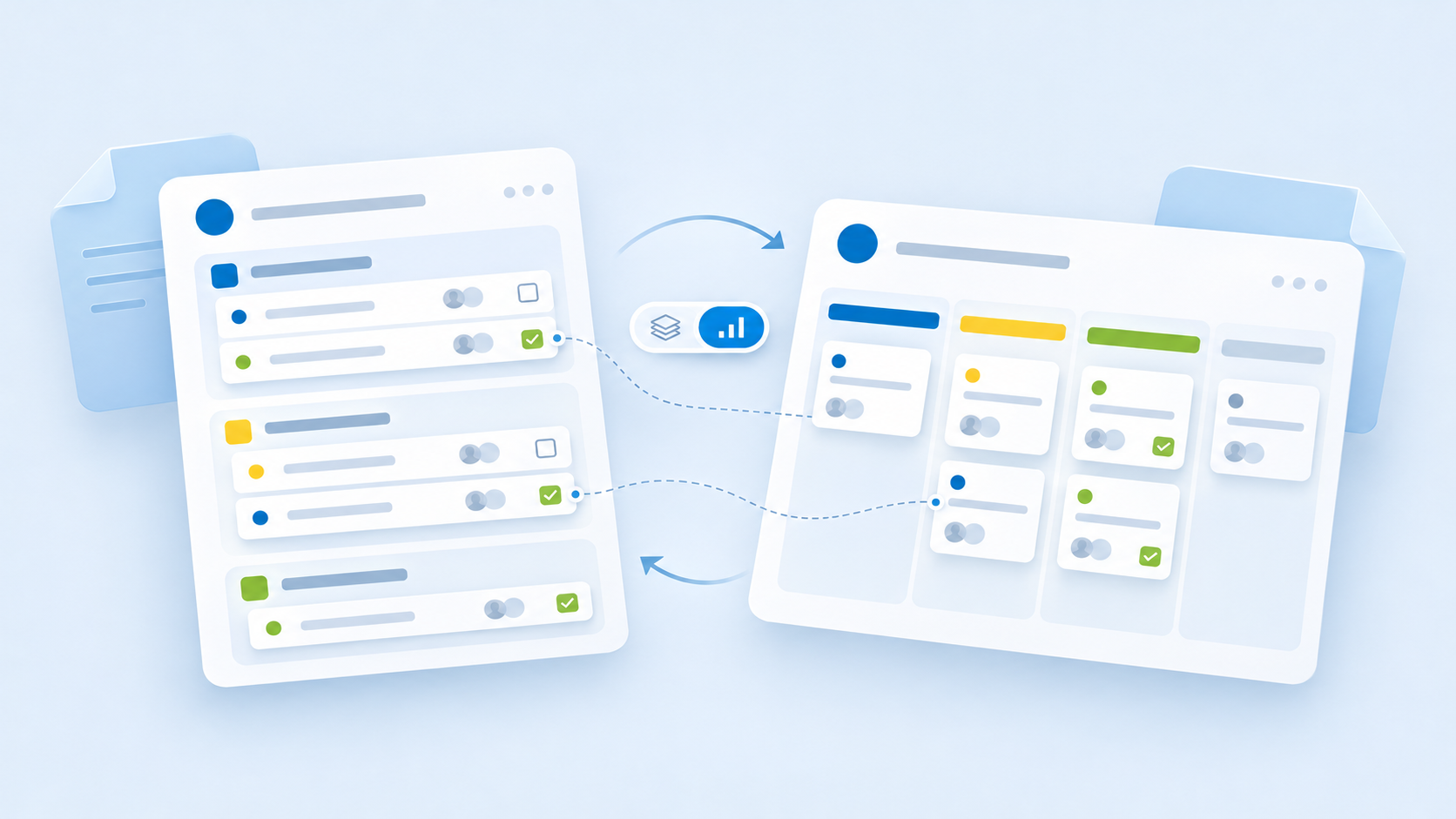
When you work with an AI assistant, you often have to copy information from other apps to give it context: pending tasks, team decisions, comments or the status of a project.
What if ChatGPT could look up that information directly in Mopux?
With MCP (Model Context Protocol), you can connect ChatGPT to your Mopux installation and use your project information during a conversation, without manually moving it from one tool to another.
In this guide we'll see how to add your installation as a custom plugin, authorize access by signing in to Mopux and start using it on the web and in the ChatGPT app.
What is MCP, and why connect Mopux to ChatGPT?
MCP is an open protocol that lets AI assistants communicate with external tools and services. In our case, it lets you connect ChatGPT, OpenAI's assistant, to Mopux, where we organize projects, tasks and teamwork.
With this connection you can, depending on the available tools and permissions:
- Look up the projects you have access to.
- Review pending tasks and check their status.
- Get information about specific tasks.
- Prepare project summaries or progress reports.
- Use that information to plan your work.
- Create or modify tasks when you authorize it.
Mopux remains the source of information. ChatGPT uses the data it retrieves as context to help you with your work.
Before you begin
You'll need a Mopux account with access to the projects you want to look up, permission to use connectors in your installation and a ChatGPT account that allows adding custom plugins. Availability of this feature depends on your ChatGPT plan and your organization's permissions.
You don't need to create credentials. Mopux registers ChatGPT automatically: you don't have to copy a personal token or provide a Client ID.
1. Copy your installation's MCP URL
In Mopux, open your account menu and go to Connected applications. Under Connect an assistant you'll find your installation's MCP URL, which looks like this: https://YOUR_INSTALLATION.mopux.com/mcp.
If you don't see that section, ask the person who administers your installation to enable your access to connectors.
2. Add Mopux as a plugin in ChatGPT
In ChatGPT in your browser, open the Plugins section.
- Click + and select the option to add a custom plugin.
- Enter Mopux as the name.
- Optionally, add the description “View and manage my Mopux projects and tasks”.
- Paste your installation's MCP URL.
- For authentication, choose OAuth and leave the Client ID and secret empty.
- Review the security warning and confirm that you want to continue.
ChatGPT will open Mopux so you can sign in. On the authorization screen you'll see the connected installation and account, that the application was registered automatically and that you'll return to chatgpt.com. If you only want to look things up, tick Grant read-only access and click Authorize connection.
When you're back in ChatGPT, review the tools it has detected.
3. Enable Mopux in a conversation
Start a new conversation and type @ in the message box to select Mopux from the available plugins.
The operations ChatGPT can perform depend on the tools exposed by the server, on what you authorized and on your user's permissions.
Use Mopux in the ChatGPT app
The plugin you add on the web is also available in the ChatGPT app with the same account. You don't have to set it up again.
4. Your first request from ChatGPT
Let's start with a simple read operation. Type:
Use Mopux to check which user and installation are connected and show me the projects I have access to. Do not modify any data.
Then you can try a more specific request:
Look up the pending tasks in the “PROJECT NAME” project and group them by status.
Replace the placeholder with the name of a project you have access to.
5. Use Mopux to organize your work
You can use your project information as context to prepare different kinds of work.
Plan the week
Look up my Mopux projects, identify the pending tasks and suggest how to distribute the work this week. Do not modify any tasks.
Prepare a meeting
Look up the open tasks in the “PROJECT NAME” project and prepare a summary of progress, blockers and outstanding issues.
Write a report for a client
Look up the status of the “PROJECT NAME” project and write a brief report in language a nontechnical person can understand.
In all these examples, ChatGPT uses the information the MCP tools can retrieve.
6. Can ChatGPT create or modify tasks?
Yes, if you didn't tick Grant read-only access when authorizing and you have the necessary permissions in Mopux. For example:
Create a pending task called “Review documentation” in the “PROJECT NAME” project. Show me what you're going to create first.
Or:
Look up the pending tasks in the project and suggest which ones we should prioritize. Don't make any changes until I review them.
Looking up information is not the same as authorizing changes. Review the actions and their parameters before confirming operations that create, update or delete data.
7. Permissions and security
Authorization doesn't extend your permissions: ChatGPT can only do what your user can do in Mopux, and with read-only access it can't modify anything.
We recommend starting with read operations and paying special attention to any operation that modifies tasks or projects. The data retrieved may become part of the conversation context: avoid requesting sensitive information you don't need.
How to remove the connection
In ChatGPT, open the Plugins section, find Mopux and remove it from its options.
To also revoke access from Mopux, open Connected applications: you'll see ChatGPT with the “Registered automatically” label and you can use Revoke access.
Your projects, also in ChatGPT
Connecting Mopux to ChatGPT lets you combine two ways of working: keeping your projects organized in a shared space and using an assistant to look up, summarize and analyze that information when you need it.
It's not about replacing team decisions or automating everything, but about reducing the work of moving information between tools and having the right context at all times.
 Mopux teamMore ideas for your team ↗